
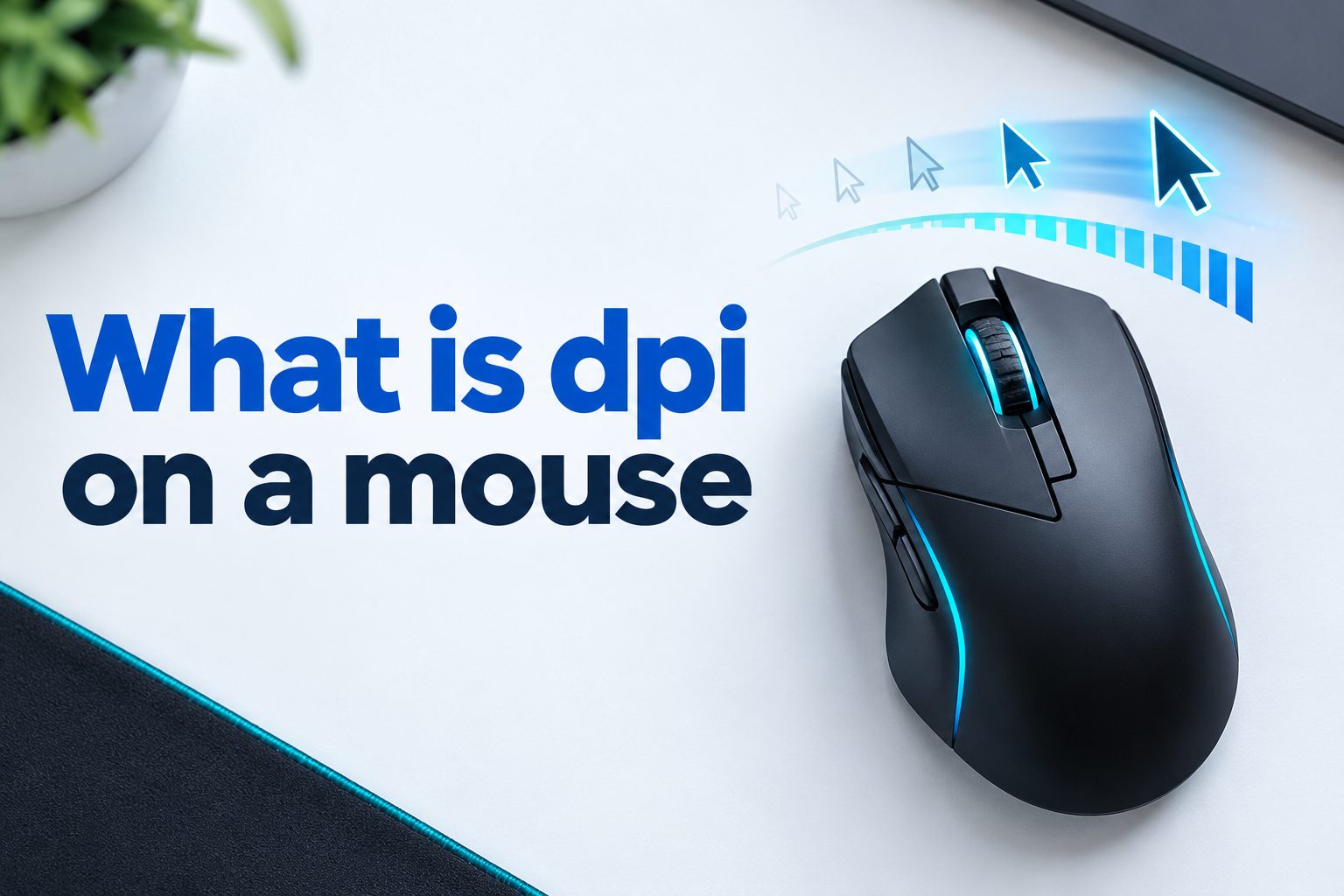
If you have ever shopped for a gaming mouse or tried to fix a cursor that feels too slow, you have probably wondered what DPI on a mouse actually means. DPI stands for dots per inch, and it measures how far your on-screen cursor moves when you physically move your mouse. A higher DPI means small hand movements create large cursor movements, while a lower DPI gives you slower and more precise control. In this guide, you will learn how mouse DPI works, what numbers are best for gaming, office work, and design, how to change and test your settings, and how to avoid common mistakes.
We will break down DPI ranges, sensitivity, polling rate, and practical use cases in simple language. Whether you use a basic office mouse or a high-end gaming model with adjustable buttons, this article will help you find a comfortable and accurate setting for your screen size and daily tasks.
How Mouse DPI Works
Mouse DPI controls the link between physical movement and cursor travel. Learning this basic idea helps you choose better settings for speed and accuracy.
1. Dots Per Inch Explained Simply
Dots per inch describes how many pixels your cursor moves on screen for every inch you move your mouse on the desk. If your mouse is set to 800 DPI, moving it one inch should move the cursor about 800 pixels. This is why higher values feel faster and lower values feel more controlled and steady.
2. How The Optical Sensor Reads Movement
Modern mice use an optical or laser sensor that takes thousands of pictures of the surface every second. The sensor compares these images to detect direction and distance traveled. DPI determines how the sensor data is translated into cursor movement, so a higher DPI amplifies tiny motions into larger on-screen distances very quickly.
3. Hardware DPI Versus Software Sensitivity
Hardware DPI comes from the mouse sensor itself, while software sensitivity is added by Windows, macOS, or a game. It is usually better to set DPI on the mouse first and keep software sensitivity near the middle. Relying too much on software acceleration can make movement feel inconsistent and reduce precise control during detailed tasks.
4. Why Screen Resolution Changes How DPI Feels
The same DPI feels very different on a small laptop screen compared to a large 4K monitor. A higher resolution screen has more pixels to cross, so you often need higher DPI to move comfortably without lifting the mouse repeatedly. This is why many people increase DPI after upgrading to a larger or dual-monitor setup for smoother navigation.
5. Role Of Polling Rate In Smooth Motion
Polling rate, measured in hertz, is how often your mouse reports its position to the computer each second. While DPI controls speed, polling rate controls smoothness and responsiveness. A 1000Hz polling rate combined with a suitable DPI feels fluid, while a low polling rate can make even the right DPI feel slightly delayed or choppy.
6. Native DPI And Sensor Accuracy
Every sensor has native DPI steps where it performs most accurately without extra processing. Extremely high values like 20000 DPI or more are often created through interpolation rather than true sensor detail. Staying near the middle of your mouse range usually gives cleaner tracking, less jitter, and more predictable cursor control overall.
Why Mouse DPI Matters For Daily Computing
Choosing the right mouse DPI affects comfort, speed, and accuracy. Here are the main reasons this single setting has such a big impact.
- Faster Navigation: Higher DPI lets you cross large screens with less hand movement and fewer lifts.
- Better Precision: Lower DPI helps with careful tasks like selecting text, editing photos, and clicking small buttons.
- Less Wrist Strain: A balanced DPI reduces repeated lifting and stretching that can cause fatigue over long workdays.
- Improved Gaming Aim: The right DPI helps you aim steadily without overshooting targets in fast games.
- Smoother Multi Monitor Use: Correct DPI makes it easy to move across two or three displays without feeling slow.
Common Mouse DPI Ranges Explained
Mouse DPI numbers can look confusing at first. This breakdown shows what common ranges feel like and who they suit best.
1. Low Range From 200 To 600 DPI
This very low range feels slow and highly controlled because you must move the mouse much farther to cross the screen. It is sometimes used by professional first-person shooter players who want extremely steady aim with large mousepads. For regular office work, however, it can feel tiring because simple navigation requires more arm movement.
2. Standard Range From 800 To 1200 DPI
The 800 to 1200 DPI range is the sweet spot for most office workers, students, and casual users. It offers a good balance between speed and control on 1080p screens without feeling twitchy. Many people find 800 DPI comfortable for documents and browsing, while 1000 or 1200 DPI works well for slightly larger displays and multitasking.
3. Medium High Range From 1600 To 3200 DPI
This range feels fast and responsive and is popular for high-resolution monitors, fast-paced work, and many video games. You can move across the screen quickly with small wrist movements, which saves time during multitasking. If control becomes difficult, lowering in-game sensitivity while keeping this DPI can restore balance and accuracy effectively.
4. High Range From 4000 To 8000 DPI
DPI above 4000 feels extremely fast and is mainly useful for 4K screens, ultrawide monitors, or multi-monitor setups. Most users will find it too sensitive for precise clicking unless they also reduce software sensitivity. Gamers rarely use this range for aiming, but it can work for quick camera movement in strategy or simulation games.
5. Ultra High Range Above 12000 DPI
Ultra-high DPI values are mostly marketing features rather than practical settings for daily use. At these levels, even tiny vibrations move the cursor a long distance, making precise control almost impossible. Unless you have a very specific large display setup, there is little benefit to using such extreme sensitivity for work or play.
6. Adjustable Presets And DPI Shift Buttons
Many gaming and productivity mice let you save two to five DPI presets and switch instantly with a button. This is useful because you can use low DPI for precise aiming or design work and high DPI for browsing. Learning to use these presets helps you adapt quickly without opening settings menus every time.
How To Change Mouse DPI Settings
Follow these simple steps to find and adjust your ideal DPI level safely without losing control of your cursor.
- Check For DPI Buttons: Look for small buttons behind the scroll wheel or check the product manual to see if your mouse supports hardware switching.
- Install Official Software: Download the mouse app from the maker to access exact DPI sliders, presets, and profile saving features.
- Set A Starting Value: Begin at 800 or 1000 DPI for standard screens or 1600 DPI for large 1440p or 4K screens.
- Adjust System Pointer Speed: Keep Windows pointer speed at the middle notch and turn off enhanced precision for more consistent tracking.
- Test In Real Tasks: Try browsing, highlighting text, and dragging files to see if movement feels smooth and easy to stop accurately.
- Fine Tune For Games: Adjust in-game sensitivity separately after setting DPI, then practice aiming for ten to fifteen minutes before changing again.
- Save Profiles For Tasks: Create separate low, medium, and high DPI profiles for design, office work, and fast navigation if your software allows it.
Best Mouse DPI Levels For Gaming Performance
There is no single perfect gaming DPI, but certain ranges work better for different game styles and play habits.
1. First Person Shooters And Tactical Aim
Most shooter players perform best between 400 and 800 DPI with low in-game sensitivity for smooth tracking. This combination allows precise micro-adjustments when aiming at distant targets while still turning quickly enough. It also works well with large mousepads because you can use your whole arm for stable and repeatable movements.
2. Battle Royale And Fast Action Games
Battle royale games need both precise shooting and fast camera turns, so 800 to 1600 DPI is a common choice. This range lets you loot quickly, react to enemies from different directions, and control recoil effectively. Many players keep DPI at 800 and raise in-game sensitivity slightly until turning feels natural without losing aiming accuracy.
3. MOBA And Strategy Games
Strategy and MOBA players often prefer 1600 to 3200 DPI because they must click across the entire map rapidly. Higher DPI reduces the need to drag the mouse long distances during intense fights. Since precise pixel aiming matters less than speed and map awareness, a faster cursor usually improves reaction time and overall comfort significantly.
4. MMO And Role Playing Games
MMO players benefit from 1000 to 2000 DPI for managing inventory, rotating the camera, and targeting enemies comfortably. This middle range prevents fatigue during long sessions while keeping menus easy to navigate. If you use many side buttons for abilities, a stable medium DPI also helps you stay accurate while pressing those extra controls.
5. Casual And Console Style Games
Casual games, platformers, and story-driven titles do not require extreme precision, so 800 to 1600 DPI usually feels best. Choose whatever lets you relax your wrist and enjoy smooth movement without constant correction. Comfort matters more than competitive advantage here, so test briefly and pick the setting that feels most natural immediately.
6. eDPI And Finding Your Personal Fit
Effective DPI, often called eDPI, is your mouse DPI multiplied by in-game sensitivity and is useful for comparing settings. Two players with different DPI but the same eDPI will have similar turn speed. Start with a popular eDPI for your game, play several matches, then adjust gradually until your aim feels controlled and confident.
Ideal Mouse DPI For Work And Creativity
For office work on standard screens, 800 to 1200 DPI gives steady control for documents, email, and spreadsheets without wrist strain.
On larger 1440p or 4K displays, 1600 to 2400 DPI often feels better because the cursor must travel across many more pixels. This prevents repeated lifting.
Graphic designers and video editors usually switch between levels, using low DPI around 800 for detailed masking and higher DPI for timeline navigation and browsing.
Programmers and writers benefit from medium DPI that makes text selection easy. Too high a setting makes it hard to place the cursor between characters accurately.
The best approach is to test one setting for a full day, notice fatigue or overshooting, then adjust by 200 DPI steps until navigation feels effortless and precise.
Common Mouse DPI Mistakes To Avoid
Many cursor problems come from simple setup errors. Avoiding these mistakes will save you time and improve accuracy quickly.
1. Using Maximum DPI For Everything
New users often assume higher DPI is always better and set it to the maximum value. This makes the cursor jump with the smallest movement and causes misclicks, poor aim, and hand tension. Start near the middle of your mouse range instead and increase gradually only if you struggle to cross the screen comfortably.
2. Ignoring In Game Sensitivity Settings
DPI alone does not determine game speed because in-game sensitivity multiplies it significantly. Setting high DPI plus high sensitivity creates uncontrollable movement that ruins aim. Set your mouse DPI first, then adjust game sensitivity in small steps while testing in practice mode until turning and tracking both feel smooth and predictable.
3. Keeping Windows Enhancement Turned On
The enhance pointer precision option in Windows adds acceleration that changes cursor speed based on how fast you move. This makes muscle memory harder to build because the same hand movement produces different results. For gaming and design work, it is usually better to turn this feature off and rely on consistent DPI.
4. Using The Same DPI On Every Screen
A setting that feels perfect on a laptop can feel slow on a 27-inch 4K monitor or too fast on a small tablet screen. Many people forget to adjust DPI after changing displays or adding a second monitor. Recheck your comfort level whenever your setup changes and create separate profiles for portable and desktop use.
5. Changing DPI Too Often Without Testing
Constantly switching DPI prevents your hand from developing steady muscle memory for clicking and aiming. Give each new setting at least a few hours of real use across work and play before judging it. Keep notes on what feels too fast or too slow so your adjustments become smaller and more accurate over time.
6. Forgetting About Mousepad And Surface Quality
DPI performance depends heavily on a clean, even tracking surface that the sensor can read clearly. A dirty, reflective, or uneven desk can cause skipping that feels like a DPI problem. Use a quality mousepad, clean the sensor gently, and test again before assuming your DPI number is wrong for your needs.
Best Practices For Mouse DPI Adjustment
These practical habits will help you dial in a DPI setting that stays comfortable for work, study, and play.
1. Start Low And Increase Gradually
Begin at 800 DPI and increase in steps of 200 until you can cross your screen comfortably without overshooting small icons. This gradual method helps you notice the exact point where speed starts hurting accuracy. Most people find their ideal balance sooner than expected without jumping to unnecessarily high sensitivity levels that cause long-term discomfort.
2. Match DPI To Your Grip Style
Palm grip users who move with the arm often prefer lower DPI for stability, while fingertip grip users who move with fingers may like slightly higher DPI. Pay attention to whether you use wrist, arm, or finger motions most often. Choosing DPI that fits your natural grip reduces strain and makes precise stops much easier throughout the day.
3. Use DPI Shift For Precision Moments
Many gaming mice have a sniper button that temporarily drops DPI while held down for careful aiming. Assign this feature to photo retouching, video trimming, or long-range shots in games. It gives you the best of both worlds by combining fast daily navigation with instant access to slow and steady control.
4. Keep Sensitivity Consistent Across Games
Once you find a comfortable turning speed in one game, try to match that feel in other games using sensitivity calculators or eDPI. Consistent muscle memory helps you aim better without relearning every title. Write down your DPI and sensitivity values so you can quickly restore them after updates or computer changes.
5. Test With Real Tasks Not Just Desktops
Moving the cursor on an empty desktop does not reveal much about real accuracy needs. Test your DPI by highlighting text, resizing images, closing small windows, and aiming in your favorite game. If all these tasks feel smooth and controlled, your setting is likely correct for both productivity and entertainment purposes.
6. Recheck After Hardware Changes
New monitors, mousepads, or even desk height can change how your DPI feels in practice. After any upgrade, spend a few minutes retesting cursor speed and comfort. Small adjustments of 100 to 200 DPI are often enough to restore perfect control without abandoning a setting that previously worked well for you.
Practical Mouse DPI Use Cases
Different people need different DPI levels. These real examples show how to match settings to everyday activities and work styles.
1. Office Documents And Spreadsheets
Office workers who spend hours in documents and spreadsheets usually do best with 800 to 1200 DPI. This range makes it easy to select cells, highlight sentences, and click toolbar icons without slipping. It also reduces wrist movement during long typing sessions, which helps prevent fatigue and improves overall comfort and productivity significantly.
2. Graphic Design And Photo Editing
Designers need both broad navigation and pixel-level precision for masking, drawing, and color correction tasks. Many use 800 DPI for detailed brush work and switch to 1600 or 2000 DPI for panning large canvases. Programmable DPI buttons make this switching fast and help maintain creative flow without constant trips to settings menus.
3. Programming And Multitasking Developers
Programmers often work with multiple windows, terminals, and browsers spread across two screens. A DPI of 1200 to 2000 helps move quickly between panels while still allowing accurate text selection. Lowering pointer speed slightly can further improve code highlighting and debugging clicks during long development sessions with complex projects.
4. Students And Everyday Browsing
Students browsing, taking notes, and watching lessons need a simple and forgiving setting that works on different desks. Around 1000 DPI is comfortable for most laptops and library computers without feeling jumpy. It allows smooth scrolling, easy link clicking, and relaxed wrist posture during long study periods and research tasks.
5. Competitive Esports Players
Competitive players treat DPI as part of a complete system that includes mousepad size, grip, and posture. Most professionals use 400 to 800 DPI with large pads to make aiming highly repeatable. They practice the same sensitivity for months to build muscle memory, changing only in tiny steps when switching games or display sizes.
6. Large Screens And Multi Monitor Setups
Users with ultrawide or triple-monitor setups often need 2000 to 3200 DPI just to avoid excessive lifting. Without higher DPI, crossing all that screen space becomes tiring and slow. Pairing higher DPI with medium system sensitivity keeps motion fast yet controllable, especially when dragging files or managing timelines across displays.
Frequently Asked Questions
1. What Is DPI On A Mouse In Simple Terms
DPI on a mouse means dots per inch and shows how sensitive your mouse is. Higher DPI moves the cursor farther with less hand movement, while lower DPI moves it slower for better control. Most people use between 800 and 1600 DPI for daily tasks.
2. What DPI Should Beginners Use First
Beginners should start at 800 DPI for standard screens or 1200 to 1600 DPI for larger screens. This range feels balanced for browsing, office work, and casual gaming. Test it for a day, then adjust up or down by 200 DPI until clicking feels easy.
3. Is Higher Mouse DPI Always Better
No, higher DPI is not always better because extreme speed reduces precision and causes overshooting. Very high values can also introduce jitter from sensor interpolation. The best DPI is the lowest value that still lets you cross your screen comfortably without repeated lifting.
4. What DPI Do Most Gamers Prefer
Most gamers prefer 400 to 800 DPI for shooters and 800 to 1600 DPI for other genres. Shooter players like lower DPI for steady aim, while MOBA and strategy players like higher DPI for fast map movement. Personal comfort and mousepad size matter more than marketing numbers.
5. How Does DPI Affect Office Work Accuracy
DPI affects how easily you can select text, click small buttons, and drag files accurately. Too high DPI causes slipping and misclicks, while too low DPI causes fatigue from extra movement. A medium setting around 1000 DPI usually gives the best mix of speed and control.
6. Can I Change DPI If My Mouse Has No Button
Yes, you can still adjust pointer speed in system settings even if your mouse has no dedicated DPI button. Windows and macOS both offer sensitivity sliders that change cursor speed. For exact control, install the maker software or consider upgrading to an adjustable mouse later.
Conclusion
DPI on a mouse controls how fast and precisely your cursor responds to hand movement. Low DPI gives steady control for aiming and detailed work, while higher DPI gives quick navigation for large screens and fast games. The right choice depends on your display size, grip style, and daily tasks.
Start around 800 to 1200 DPI, test in real work and play, then fine tune gradually. With consistent settings, a good surface, and saved profiles, you will enjoy smoother control, less strain, and better accuracy every day.